
If you haven't already, install the app (listed as “AI Life” or “HUAWEI AI Life”) on your phone before setting up Parental Controls.
Install from Huawei AppGallery
On an Android phone, open the link below in your browser and tap “Install” to download AI Life from Huawei AppGallery.
Install from the Apple App Store
On an iPhone, open the link below in your browser to install HUAWEI AI Life from the App Store.
Get HUAWEI AI Life on the App Store
Go to your device in the App
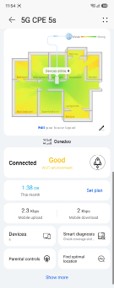
Open the AI Life app and tap your 5G AirFibre device under Devices. Ensure your phone is connected to the same Wi-Fi network.

Open Parental Controls
On the device home screen, scroll down to the quick-actions grid and tap “Parental controls.”
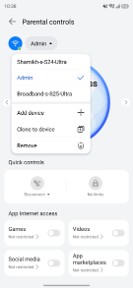
Select the device to manage
· Open the Parental Controls screen.
· Use the drop-down at the top to pick the device you want to manage (like a child's phone or tablet).
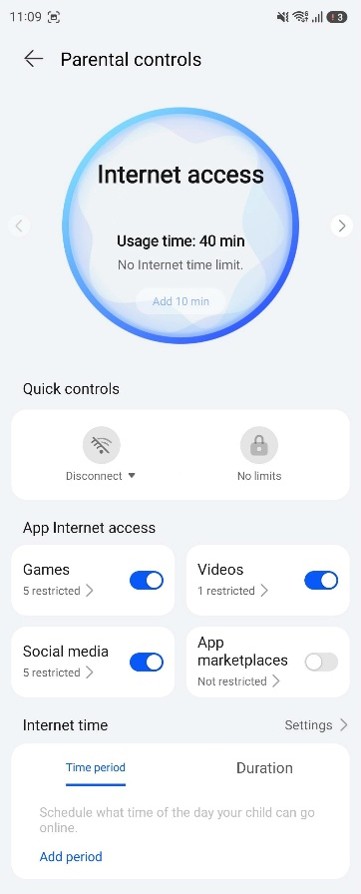
· The screen will then show that device's usage time and internet status.
· To switch between devices you've already selected, swipe left or right on the Internet Access circle — no need to open the drop-down again.

Manage your device list
· Tap the drop-down itself to see every device set up on your account.
· From here you can:
- Add a new device.
- Clone the current settings to another device.
- Remove a device you no longer need to manage.
Turn on category restrictions
· Under “App Internet Access”, enable the toggles for Games, Videos, social media, and Installed Apps.
· Tap a category to manually select which apps to block or unblock.
- Games, Videos, and Social Media display the number of apps currently restricted within each category.
- App Marketplaces include platforms used to download and install applications.
You can manually choose which apps to block or allow within each category by selecting or deselecting them.
Pick specific apps to block
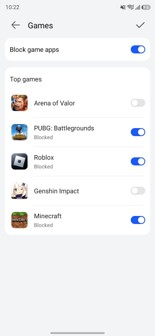
Tap a category, such as Games, then enable Block Game Apps. Under Top Games (or the corresponding app list), select the apps you want to block. Leave apps unselected if you want to allow access to them.
Add a time period
On the “Time period” tab, select “Add period” to create a window during which the device is allowed online
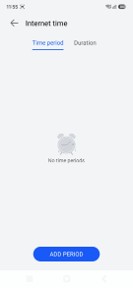
Define the allowed hours
· Set a Start Time and End Time (e.g., 08:00 to 23:00).
· Choose a repeat option: Every Day, Weekdays, Weekends, or Custom.
· Tap the ✓ to save.
· The device will not have internet access outside the selected schedule.

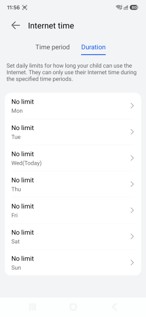
Cap daily internet use
· As an alternative to fixed hours, switch to the "Duration" tab to set a daily internet time limit for each day of the week.
· Tap any day to set its limit.
· Leave a day as "No limit" for days without restrictions.
Quickly allow or disconnect access
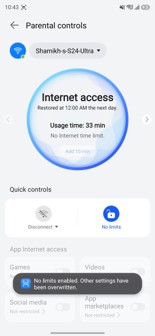
Use Quick Controls fora one-tap override.
· Tap No Limits to allow unrestricted internet access for the rest of the day. This temporarily overrides all restrictions and schedules.
· Tap the Disconnect drop-down to disconnect the device immediately or after 10 minutes, 30minutes, 1 hour, or at a custom time.
· Enabling No Limits displays a confirmation that your existing restrictions have been overridden.
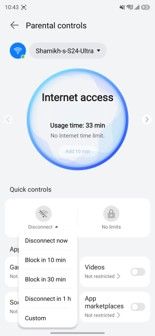
Choose a disconnect delay
Opening the “Disconnect” dropdown shows your options:
· Disconnect now
· Block in 10 min or 30 min
· Disconnect in 1 hr
· Custom (if you'd rather set your own delay)
If you want to block individual websites rather than whole app categories, use the domain name filter. This works across all or selected devices on your network, not just the one selected in Parental Controls.
Open Advanced settings
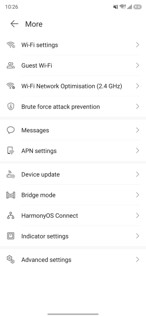
From the device home screen, tap “Show more” to open the full “More” menu, then scroll down and tap “Advanced settings.”
Find the domain name filter
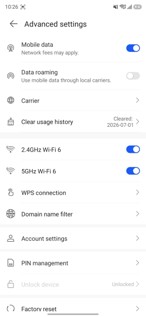
In Advanced settings, scroll to the Wi-Fi section and tap “Domain name filter.”
Add a URL to the blocklist
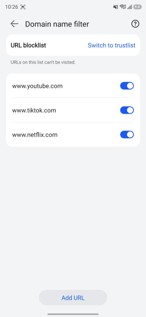
On the Domain name filter screen, make sure “URL blocklist” is selected, then tap “Add URL” at the bottom.
Enter the URL and choose devices
Type in the website you want to block. Turn on “Apply to selected devices only” and check the specific devices it should apply to or leave it off to block the site network-wide. Tap “OK” to save.
· You can add as many URLs as you need — each one gets its own toggle so you can turn it off without deleting it.

· Parental Control changes apply only to the selected device, but you can copy the settings to other devices.
· No Limits and Disconnect are temporary overrides. Your saved restrictions and schedules automatically resume when the override ends.